Adam for Onshape
Keep your design in Onshape. Ask Adam for the next change.
Connect your Onshape account and give Adam the document, geometry, and design intent. Work from Adam on the web, or use the Onshape extension to bring the conversation alongside your model.
How to get started- Account authorization
- Optional in-document extension
- Part Studios and assemblies
01 / Start here
Set up a useful first task.
- 01
Authorize your Onshape account
In Adam, open Integrations, choose Onshape, and select Connect. Sign in to Onshape and review the requested access.
- 02
Choose your working surface
Use Adam on the web, or install Adam from the Onshape App Store and open the extension in a document. Use the same Adam account on both surfaces.
- 03
Point Adam at the right geometry
Provide the document link and Part Studio or assembly. In the extension, select the relevant geometry and explain what should change and what should remain fixed.
02 / In your workflow
Start with the document, not a blank prompt.
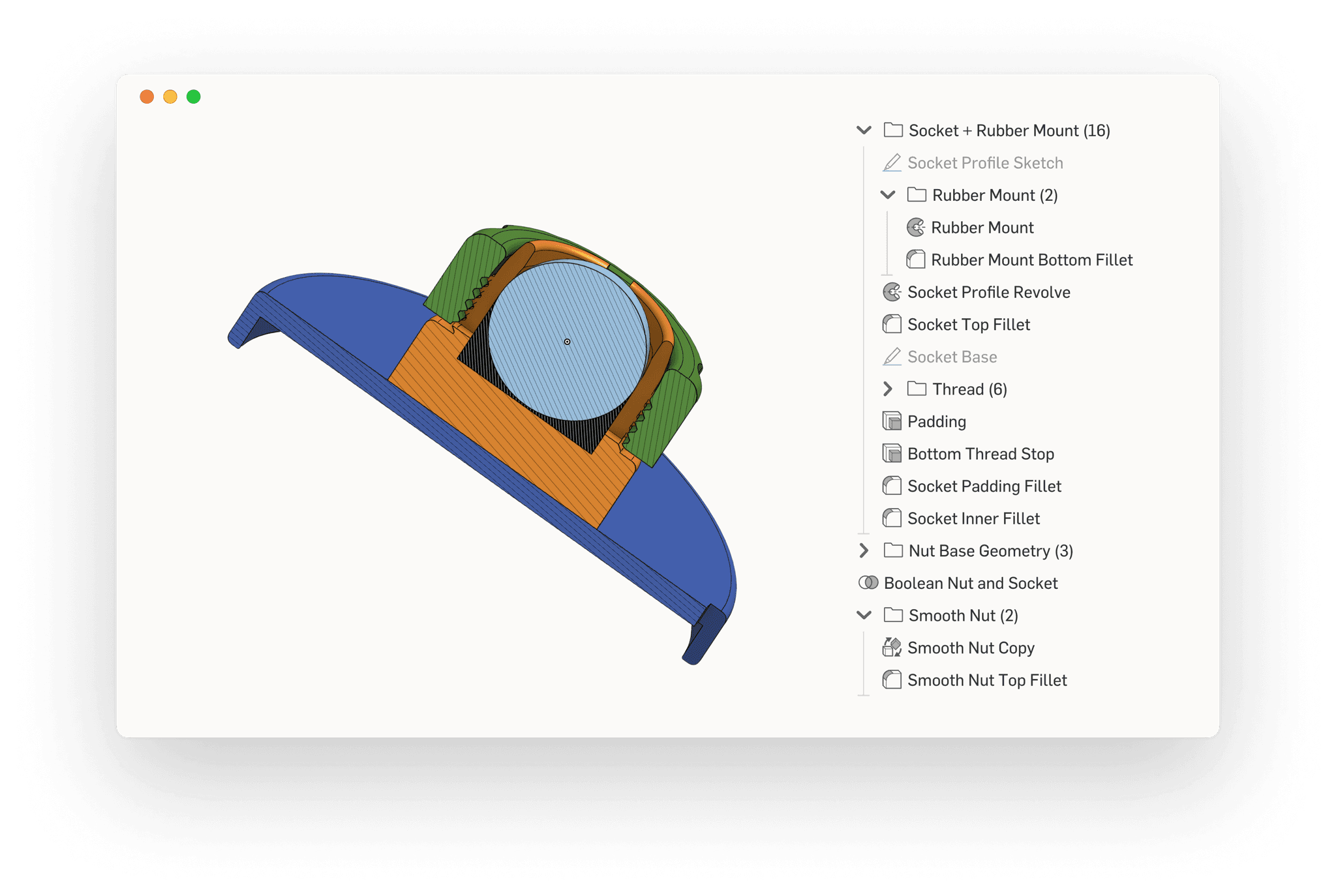
Onshape documents hold more than a shape. Part Studios, features, variables, and assembly structure provide the context for a useful change. Tell Adam which document and tab to work in, and make the constraints explicit.
For a fit adjustment, specify the mating dimensions and clearance. For a family of parts, identify the variables that should drive the variants. For an assembly question, point to the relevant instances and mates.
- Inspect features and dimensions before changing them.
- Use selected geometry to narrow the task in the extension.
- Review the resulting features and regenerate the model.
03 / In your workflow
Connect once, choose how to work.
The account connection lets Adam work with Onshape documents your account can access. You do not need the desktop connector for this web connection, and Onshape does not need to remain open for account-based access.
The Onshape extension adds context from the document and selection you are viewing. Keep that tab open while working through the extension. The tasks are also available in Adam's web app.
Read the Onshape connection guide04 / In your workflow
Give parametric intent a place to live.
A model is easier to maintain when a small set of named dimensions drives the geometry. Ask Adam to identify repeated dimensions, explain dependencies, and propose a variable scheme before restructuring a Part Studio.
Review each meaningful change in the feature list. An imported solid and a native parametric model are different starting points; rebuilding design intent takes more than opening a neutral file.
Read the parametric editing workflowQuestions, answered
Before you start.
Do I need an Onshape API key?
The standard Adam connection uses Onshape account authorization from Integrations. You sign in and approve access; you do not need to set up a separate API key for that flow.
Can I use Adam inside Onshape?
Yes. Install Adam from the Onshape App Store, open it in your document, and sign in with your Adam account. The extension provides context from the open document and selection.
Can Adam access every Onshape document?
Adam works within the access granted through your connected account. If a document is unavailable, check its sharing permissions and confirm you connected the intended account.
How does this relate to FeatureScript MCP?
FeatureScript MCP and Adam offer different ways to connect AI to Onshape workflows. Read the comparison for setup and workflow considerations, and evaluate both on the type of model you actually need to change.
Keep exploring
The next step in your workflow.
Start with a real part
Put Adam to work in your CAD.
Connect your tools, bring a specific task, and inspect the result.