Workflow / Parametric editing
Change the dimension. Keep the intent.
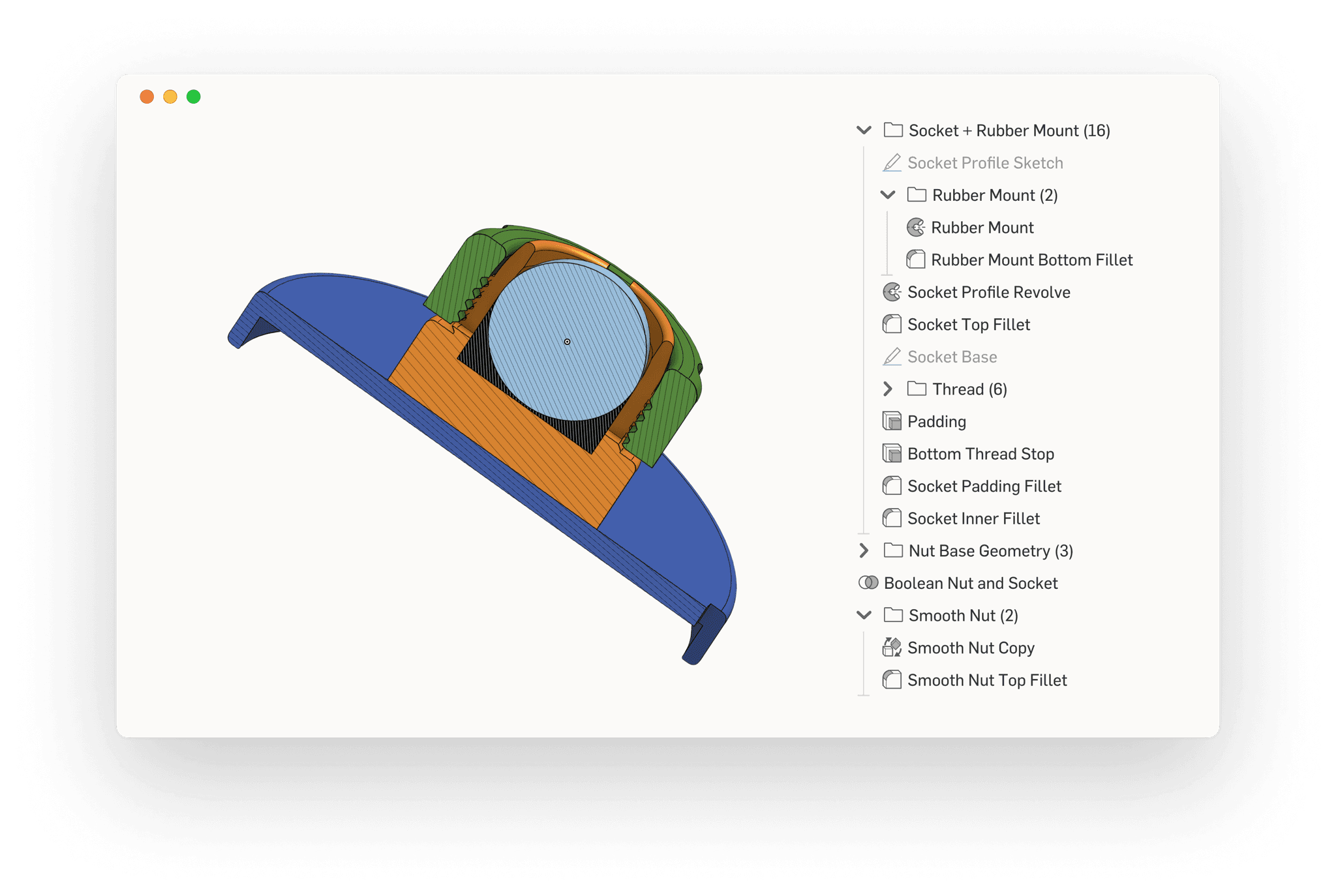
Tell Adam what should change and what must stay fixed. Use the existing sketches, features, and parameters as the starting point, then check the consequences of the edit in your CAD system.
How to get started- Existing model context
- Explicit constraints
- Rebuild and inspect
01 / Start here
Set up a useful first task.
- 01
Inspect the current model
Connect your CAD application and open the intended document. Ask Adam to identify driving dimensions, repeated values, and dependent features.
- 02
Describe the invariant
State the new value and the relationships that must remain true: wall thickness, offsets, symmetry, clearances, or mating geometry.
- 03
Verify the consequences
Rebuild or regenerate, inspect affected features, and measure the dimensions that matter. Save a reviewed revision through your normal workflow.
02 / In practice
Specify relationships, not just numbers.
Changing an enclosure length can move bosses, change rib spans, and affect a mating cover. The numerical edit is simple; preserving the relationships is the engineering work. Tell Adam which references should move and which must remain fixed.
When several dimensions represent the same design choice, ask for a shared parameter or variable. Review the proposed dependency structure before replacing independent dimensions with a new relationship.
- Name the feature or sketch that should drive the edit.
- Describe fixed interfaces and required clearances.
- Identify the assembly or downstream drawing that may be affected.
03 / In practice
Test the model's behavior after the change.
A successful tool call is not the end of an edit. Inspect rebuild or regeneration errors, compare the intended measurements, and check nearby geometry. If a face or edge reference changes, a dependent feature may need attention.
Ask Adam for a concise record of the features changed, the dimensions checked, and any unresolved issues. Keep that record with the task so another engineer can understand what happened.
Learn how Adam tasks work04 / In practice
Know what history the source actually contains.
A native parametric part and an imported solid require different approaches. With native features, you may edit the controlling sketch or parameter. With an imported body, the original sketch constraints and feature sequence may be absent.
If you need a maintainable feature tree from an imported model, make reconstruction an explicit task. For a move between CAD systems, define which geometry, features, and metadata must survive and evaluate a representative part first.
Plan a parametric CAD migrationQuestions, answered
Before you start.
What is parametric CAD editing?
It means changing a model through the dimensions, constraints, and features that define it. The useful result preserves intended relationships so later changes behave predictably.
Can Adam clean up a feature tree?
Ask Adam to inspect the tree and propose a cleanup. Review dependencies before suppressing, merging, or replacing features; a shorter tree is not automatically a more robust model.
Does a STEP file contain the original feature history?
A typical STEP exchange carries geometry and may carry additional product information, but it does not recreate the original native sequence of sketches and features. Recovering that design structure requires separate reconstruction.
How do I know the edit worked?
Check the resulting native model, rebuild state, requested measurements, and affected interfaces. Ask for explicit checks and review any unresolved assumptions before releasing the change.
Keep exploring
The next step in your workflow.
Start with a real part
Put Adam to work in your CAD.
Connect your tools, bring a specific task, and inspect the result.