Adam for Autodesk Fusion
From an idea to the next feature in Fusion.
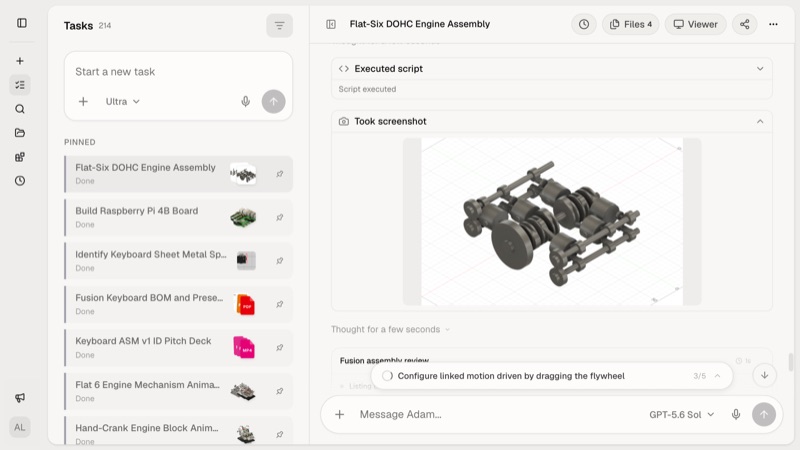
Bring Adam into Autodesk Fusion, also known as Fusion 360. Describe a part or a change to the open design, then review the sketches, features, and components in your own CAD environment.
How to get started- Windows and macOS
- Fusion toolbar add-in
- Work from Fusion or Adam
01 / Start here
Set up a useful first task.
- 01
Install Adam Connector
Download the connector on the Windows or macOS computer that runs Fusion. Close Fusion while the connector installs the add-in, then reopen it.
- 02
Open Adam from the toolbar
Open a design and select Adam in Fusion's toolbar. Sign in when prompted. If the button is missing, use Scripts and Add-Ins to find and run AdamFusion.
- 03
Describe a bounded change
Keep Fusion open. Give Adam the dimensions and constraints, select relevant geometry when useful, and review the feature or component it changes.
02 / In your workflow
Use the open design as the starting point.
Adam can work from the Fusion add-in or from the Adam web app while Fusion is open. It can use the active design and your selection to understand the task, with your message supplying the dimensions and constraints that geometry alone cannot explain.
Ask for a small edit first: a hole location, an enclosure opening, a sketch dimension, or a new feature on an existing component. Inspect the result in Fusion before expanding to a larger sequence.
- Identify the active component and the bodies involved.
- State whether existing dimensions should stay fixed.
- Check the timeline and affected geometry after the edit.
03 / In your workflow
A setup path for the computer you design on.
Adam Connector installs the Fusion add-in for you. Once installed, the Adam toolbar button opens the in-product panel. Keep Fusion running with the intended design open while Adam works.
If the add-in is installed but not running, press Shift+S in Fusion, find AdamFusion under Add-Ins, and choose Run. For updates or reinstallation, use Adam Connector and restart Fusion.
Follow the Fusion installation guide04 / In your workflow
Evaluate AI by what you can change afterward.
For engineering work, the delivered geometry is only part of the result. Open the sketch, edit a controlling dimension, and inspect the timeline. A native feature and an imported mesh offer different levels of control.
Give Adam explicit instructions when you need a parametric workflow. If the source is a drawing or a mesh, ask it to identify missing dimensions and propose the construction steps before modeling.
Plan a model from a 2D drawingQuestions, answered
Before you start.
Does Adam work with Fusion 360?
Yes. This integration is for Autodesk Fusion, which many engineers still search for as Fusion 360. Install Adam Connector and the Fusion add-in on your design computer.
Does Fusion need to stay open?
Yes. The desktop integration works with your running Fusion session. Keep the intended design open while Adam works, whether you start the task in Fusion or in the Adam web app.
Is there a Mac version?
Adam Connector and the Fusion add-in support macOS and Windows. Install the connector on the same computer as your Fusion installation.
Does Adam include a Fusion license?
No. You need your own Autodesk Fusion access. Adam's plan and usage are separate; see the current pricing page for Adam's options.
Keep exploring
The next step in your workflow.
Start with a real part
Put Adam to work in your CAD.
Connect your tools, bring a specific task, and inspect the result.